Dzīva mūzika visiem dzīves gadījumiem. Zvaniet: +371 29419780
Adobe Premiere – nelineārā video rediģēšanas programma – ideāls instruments (instrumentu komplekss) jebkura videomateriāla pēcapstrādei un montāžai. Šo programmu ļoti plaši izmanto daudzi pazīstami kino industrijas profesionāļi.
Pasaules vadošie kino un TV industrijas pārstāvji tieši Adobe Premiere ir nosaukuši par labāko video rediģēšanas programmu. Būtiska šī video redaktora priekšrocība ir ir tās integrācija ar citiem Adobe produktiem. Vairums profesionāļu izmanto sasaisti Premiere + After Effects + Photoshop.
Šāds programmu komplekts dod iespēju strādāt ar jebkuras sarežģītības projektiem, veikt jebkuras rediģēšanas un montāžas operācijas gan profesionāļiem, gan amatieriem. Pirmais iespaids par Adobe Premiere var būt diezgan mānīgs – nu, ļoooti sarežģīta programma! Bet, jo vairāk Jūs ar to strādāsiet, jo vairāk pie tās vēlēsieties atgriezties. Manuprāt komplekss ietver sevī milzum daudz tādus instrumentus un iespējas, kas daudzās video apstrādes programmās vienuviet nav pieejamas.
Neskatoties uz to, ka Adobe Premiere izstrādātāji pastāvīgi tiecas uzlabot programmas darba virsmu (interface), padarot to maksimāli vienkāršāku un ērtāku apgūšanai, ne katrs tās lietotājs spēj to apgūt patstāvīgi.
Internetā ir pieejams milzīgs klāsts visdažādāko formātu šīs programmaspalīgmateriālu. Lai sev nepieciešamo sameklētu, jāpatēre ļoti daudz laika. Varbūt no tālāk ievietotām atsaucēm Jums kaut kas noderēs.
Keyframing within Adobe Premiere Pro has gotten MUCH better over the past few years. In this video, we dive deep into the keyframing techniques within Adobe Premiere to bring your still photos to LIFE!
Timestamps:
Intro - 0:00-0:38
Scale & Position - 0:39-1:40
Blur Animation - 1:41-2:52
Tint Animation - 2:53-3:50
Lower Third Animation - 2:54-7:41
Out Animations - 7:42-9:50
Outro - 9:51-10:35
Green Screen Like A Professional - Adobe Premiere Pro CC 2021
In this tutorial I show you how to green screen like a professional. Step 1 is to drag and drop footage into your project panel. I deliberately selected poorly lit footage so I can show you how to key out bad lighting / badly light video.
Next, go to effects panel - select ultra key. This will allow us to do a good chroma key. Drag and drop ultra key onto the timeline.
Now, select the color picker, and drag and drop it onto the canvas. Select a color from a darker and poorly lit, shadowy area.
Now, we can reduce highlight down to 1 or 0. You should also increase the pedestal up. We also adjust the choke as needed.
We also crop out the pieces we do not want. Crop the corners out.
Lastly, you want to export this with an alpha channel. We select Apple ProRes 4444 with alpha.
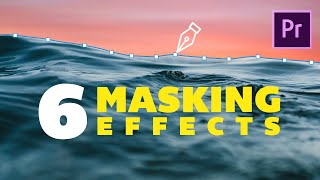
How To Remove Objects With Masking In Premiere Pro
In this tutorial I'm going to show you how to remove objects from your scene using masking, and the difference scenarios you can use this to make your videos stand out.
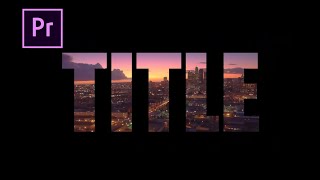
(1:42) Masking Text Animation
(4:25) Masking a Text Reveal
(7:00) Using a Mask for Screen Reflections or Replacements
(8:28) Sky Replacements
(10:34) Color Correction
(11:34) Masking Identity (hiding identity)
Free Adobe Premiere Pro Essentials Tutorial Course - Video Editing Basics
Intro to Premiere Pro Essentials: 0:00
Getting started with your course: 2:23
After Effects vs Premiere: 6:16
Getting your project setup: 10:16
How to add import video: 25:12
Class Project 01 - Basic Editing: 35:20
Class Project 01 – Complete: 38:45
Color Grading vs Color Correcting: 41:33
Transitions: 54:20
Leveling Audio: 1:04:52
Automatically raising your audio: 1:10:13
Text & lower thirds: 1:12:24
How to export: 1:23:04
Class Project 02 - Talking Head: 1:26:57
Weird Stuff I wish I knew: 1:40:37
Missing videos: 1:50:24
In this video you’ll discover how to change aspect ratio in Adobe Premiere Pro. Changing aspect ratio in Premiere Pro is super easy and can be done in just a few simple steps! These same steps are how to change aspect ratio in Adobe Premiere Pro CC and all other versions of Premiere Pro. I hope this Premiere Pro aspect ratio tutorial helps take your videos to the next level!
Welcome to Learn Everything about Adobe Premiere Pro. In this massive 9+ hour free master class course you will learn EVERYTHING about Adobe Premiere Pro, starting with the absolute basics and building up to the most advanced features avaliable to use in Adobe Premiere Pro. So without further ado lets waste no time and get into Learn EVERYTHING about Premiere Pro.
LEARN PREMIERE PRO IN 20 MINUTES ! - Tutorial For Beginners
This tutorial is structured for beginners that have either little to no experience with Premiere. I hope you guys enjoy this tutorial and find it helpful! It was a lot of work putting this all together so if you did enjoy it please give back some love by liking, subscribing, or sharing this video!